
Beta setup
Welcome to the Wren beta! Wren turns the articles you save into a personal podcast you can listen to. Here's everything you need to get going, about five minutes start to finish.
1. Install the app (TestFlight)
Your invite email has a TestFlight link.
- On your iPhone, install TestFlight from the App Store if you don't have it.
- Tap the TestFlight link in your invite email and accept.
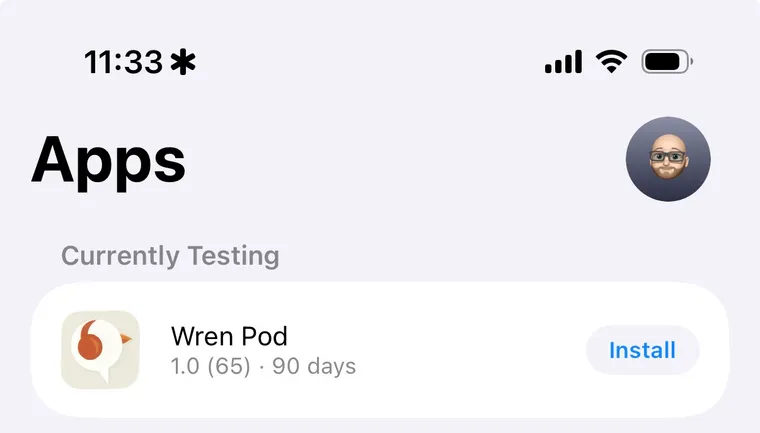
- Install Wren from TestFlight and open it.
2. Create your account
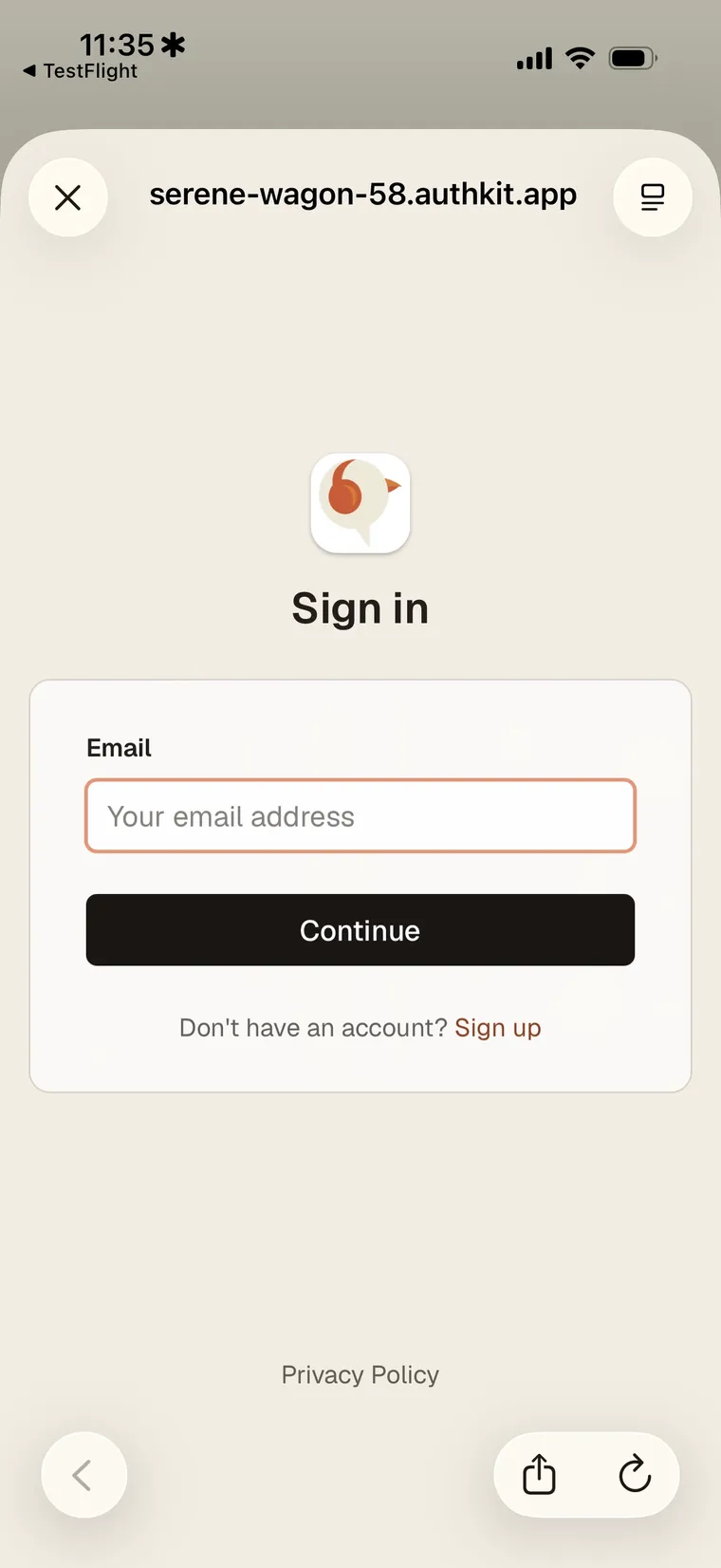
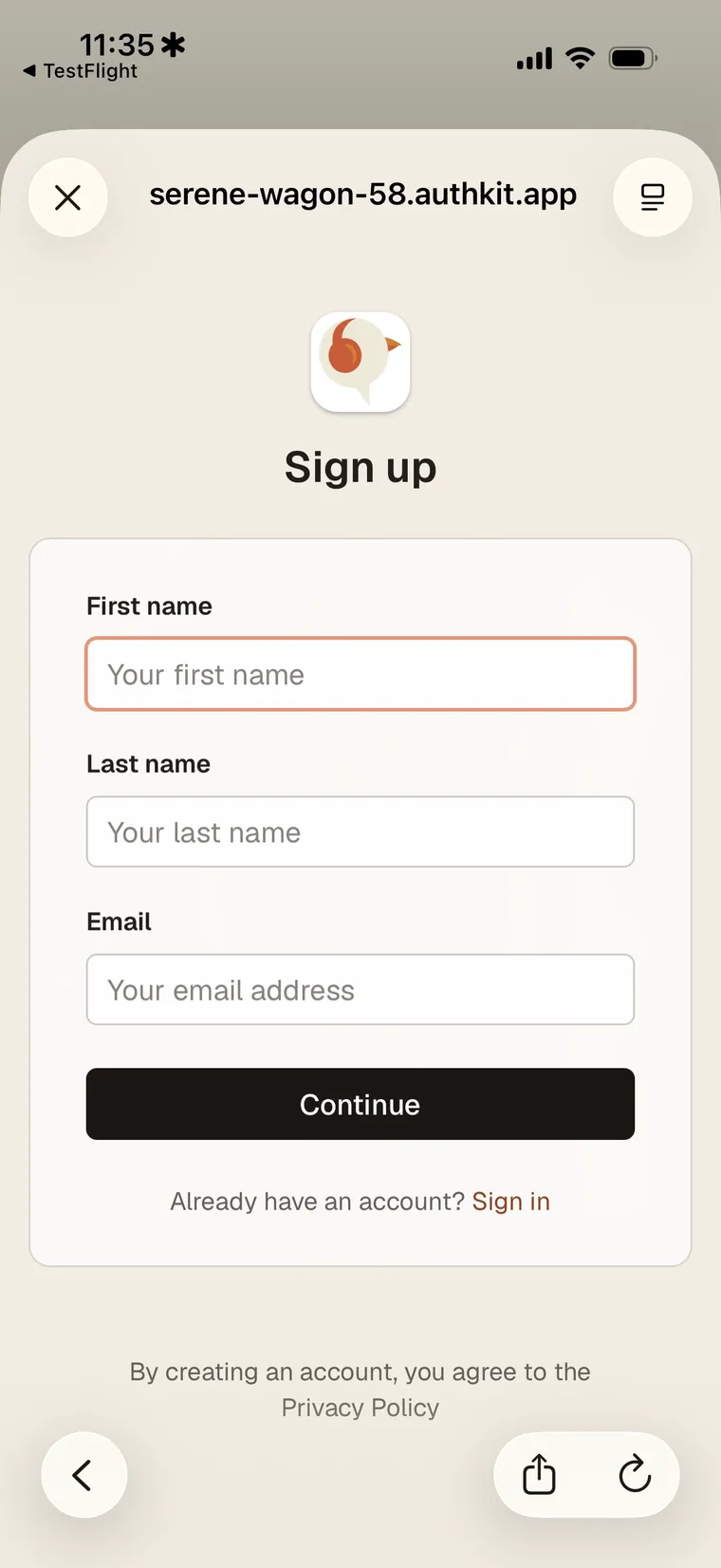
Open Wren and sign in, or create an account. New accounts start on the free version. During the quick onboarding you'll pick a free narrator voice. (More on Free vs Pro below.)
3. Save some articles
Wren needs articles to make a podcast. Three ways to save:
- Share sheet (iOS): in Safari or any reading app, tap Share → Save to Wren.
- Chrome extension: install the Wren extension to save with one click, or right-click to grab part of a page.
- Forward by email: forward any article (or just a link) to your personal Wren address. Find it in the app under Settings. (Tip: save it as a contact so it autocompletes.)
On Free, save at least 5 articles before generating, enough to make a real digest. See Queue for more.
4. Get your podcast and listen
Once you've saved enough, Wren builds an episode. Open Wren to play it. Audio works on the lock screen and in CarPlay, so you can listen hands-free. More in Player.
Free vs Pro
You're on Free to start. Once you finish your first podcast and send a bit of feedback, your account is upgraded to Pro at no charge for 90 days, no card, no commitment. Pro adds:
- Premium narrator voices
- Up to 3 podcasts a week using categories
- Themes
- Longer episodes and higher limits
Sending feedback
Feedback is the whole point of the beta, so please send lots of it. Two easy ways:
- Reply to any Wren email (including your invite and welcome emails).
- TestFlight feedback: take a screenshot in the app and TestFlight will offer to send it with a note.
Need help?
Stuck on anything? Email hello@wrenpod.com and we'll sort it out.