
Saving articles
Everything you save lands in your queue, ready to become your next podcast. There are three ways to save, so you can capture something to listen to from wherever you read.
iOS Share sheet
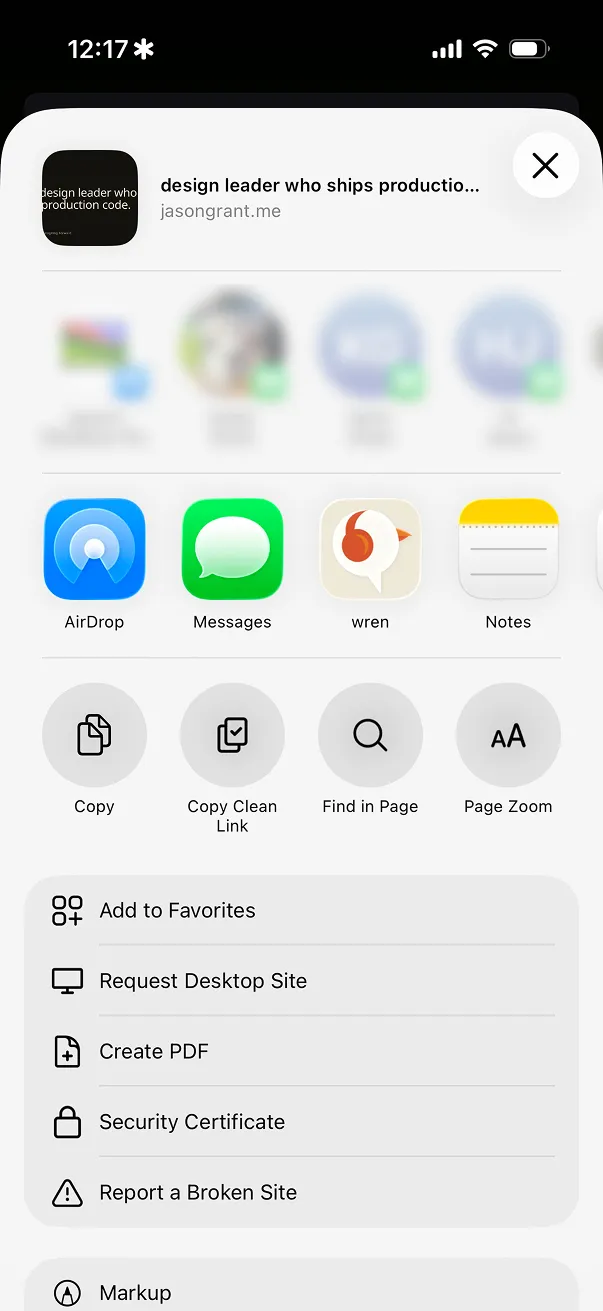
The fastest way to save from your phone. In Safari, a news app, or anywhere with a Share button:
- Tap Share.
- Choose Save to Wren. The first time, you may need to tap More and turn Wren on in the share options.
- The article is added to your queue.
Great for saving on the go without leaving what you're reading.
Chrome extension
For saving while you read on a computer:
- Install the Wren extension for Chrome.
- Click the Wren icon to save the page you're on.
- Or right-click anywhere on a page and choose Save to Wren to grab just a selection.
Forward by email
Save from any inbox, on any device, with no app required:
- Find your personal Wren address in the app under Settings.
- Forward any article, newsletter, or even just a link to that address.
- It lands in your queue like anything else.
Tip: save your Wren address as a contact so it autocompletes when you forward.
What Wren saves
Wren pulls the readable article text and skips the ads and clutter. If a page can't be fetched, Wren tells you and leaves it out of your episode. You can open the original or change an article's category any time from the queue.